Victor gives himself entirely to the work of creating life.
For novelists, screenwriters and everyone with a long story
Your book, on your desk.
Not in someone's cloud.
OmegaWrite is a quiet desktop app for writing, planning and revising a novel. It works offline, saves as you type, and keeps every word on your own computer.
- Works offlineNo sign-in, no connection, no subscription to write
- Saves itselfEvery pause in typing is committed to disk
- Yours, locallyBooks live in a library on your own drive
- Ready to submitExport to Word, PDF and EPUB
Inside the sample book
A classic story. Your own way to work.
Follow Mary Shelley’s Frankenstein from the page to the plan. The screenshots use the same sample book throughout, with character notes and chapter summaries kept alongside the manuscript.
Public-domain text by Mary Shelley. Scene names and planning notes are illustrative.
Explore the planning views →Write
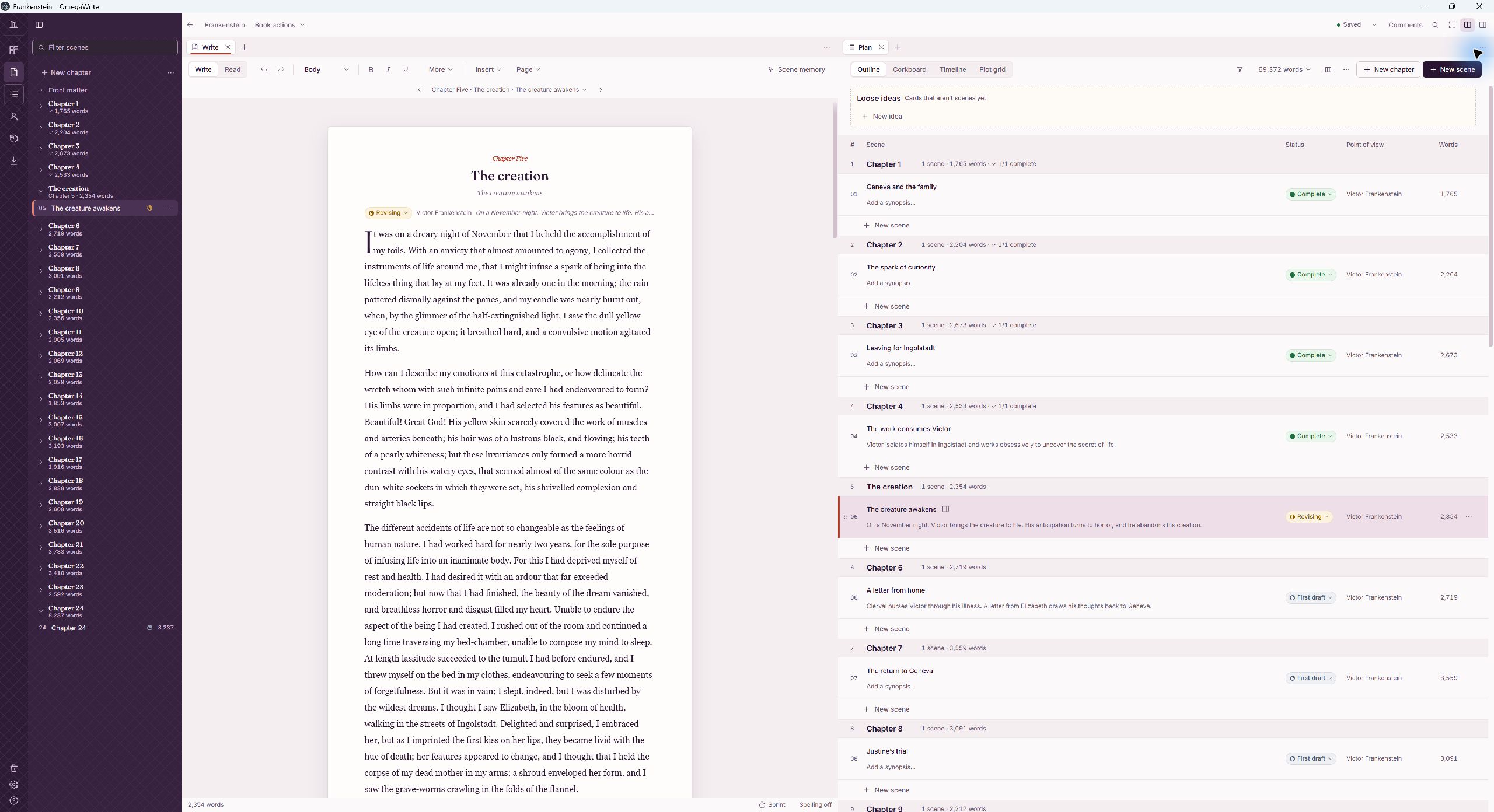
A white sheet, and nothing else.
Your scene sits on a page, lifted off the desk, in the typeface you choose. The tools stay to the side until you reach for them, and Focus dissolves everything but the words.
- Chapters and scenes you can drag, rename, trash and restore — or write in chapters only
- Headings, quotes, lists, scene breaks and real drop caps
- Write, Read and Focus views that keep your place
- Writing sprints, word counts and per-scene status
- A scene locator above the page: previous and next scene, jump within the chapter, and rename
- Light and dark looks, plus custom themes: use a picture or Adobe Swatch Exchange (.ase) swatches in the editor, then adjust colours with live preview and contrast warnings
Chapter 5
Frankenstein
It was on a dreary night of November that I beheld the accomplishment of my toils. With an anxiety that almost amounted to agony, I collected the instruments of life around me, that I might infuse a spark of being into the lifeless thing that lay at my feet.
Saved · Chapter 5
by Mary Shelley · Public-domain text
Plan
Draft on the left. The whole book on the right.
Keep Write, Plan, Story and other stages in tabs, with two panes side by side when there is room. Open several scenes in Write tabs: one editor works in the active tab; the other page shows its last saved text. Click that page to write there. Tabs and layout are remembered for each book.
Every scene with its synopsis, status and word count. Change a status from the list; reorder with a drag.
Index cards for every scene, plus Loose ideas — cards that aren't scenes yet.
Lay scenes out in story time, separate from the order you tell them in.
Track each plot thread across scenes, so nothing you planted is left hanging.
Inside a classic · Frankenstein by Mary Shelley
A turning point, in context.
- Chapter 4The work consumes Victor
He isolates himself to pursue the secret of life.
- Chapter 5The creature awakens
Victor achieves his ambition, then recoils from what he has made.
- Chapter 6A letter from home
Elizabeth’s letter reconnects Victor with the life he left behind.
See the story in three cards.
One November night, the creature opens its eye.
Horror replaces triumph. Victor flees his creation.
Story time and telling order differ.
Walton encounters Victor in the Arctic before we hear about his childhood in Geneva. Keep the events of Victor’s life in sequence while preserving the novel’s opening frame.
Follow ambition into consequence.
- Ambition
- The promise of discovery becomes an obsession.
- Isolation
- Victor withdraws from family and friends as his work consumes him.
- Responsibility
- Creation forces a question: what does Victor owe the life he has made?
Illustrative planning notes about Shelley’s novel.
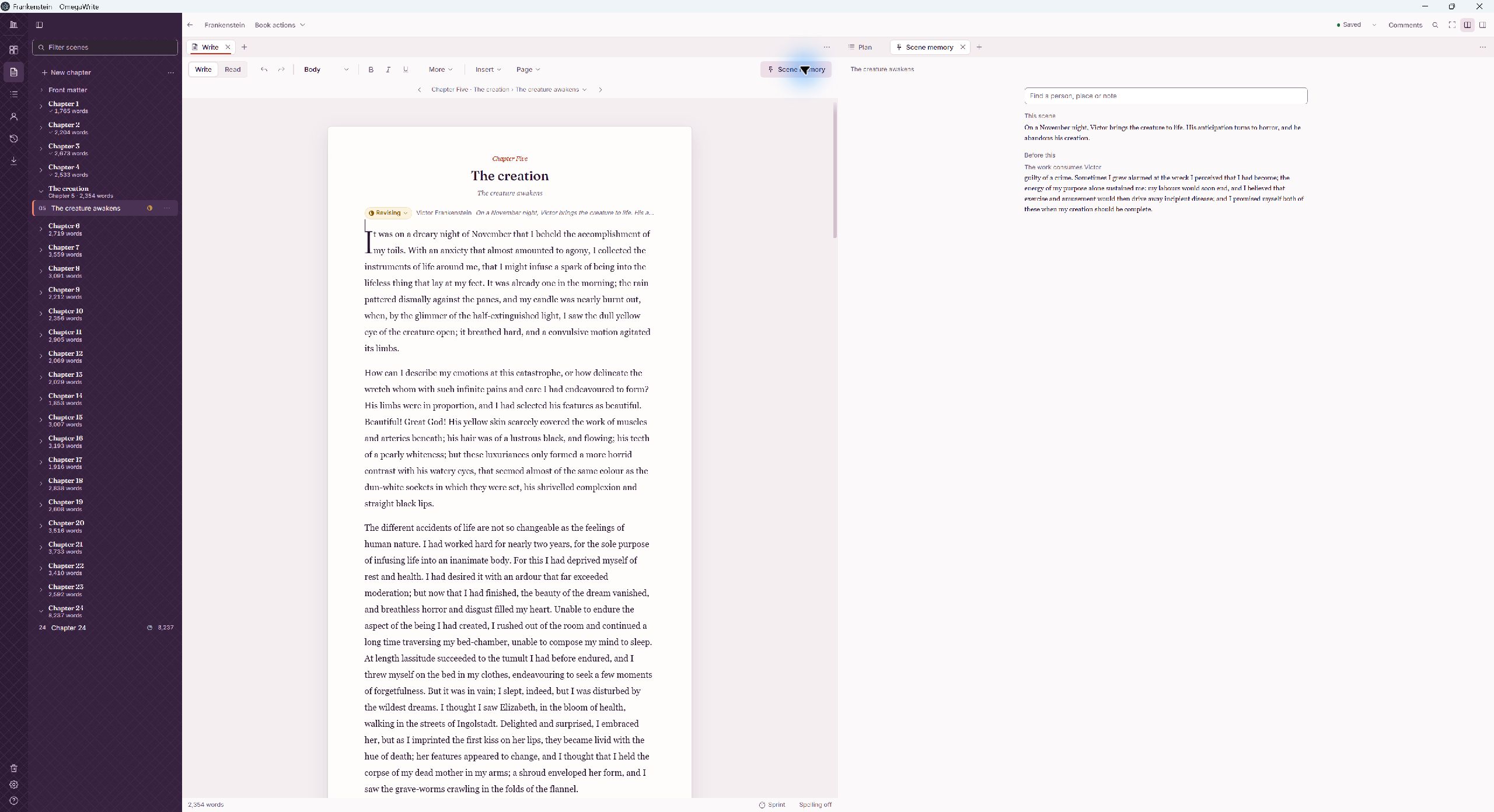
Scene memory
A companion tab beside your working tab follows the scene you are writing: synopsis, the previous scene’s ending, people, to-dos, the last cut and sources. It needs room for two panes.
People, places, notes
Characters, threads, research and decisions, linked to the scenes they appear in, with full history.
Search everything
Press Ctrl K to search your manuscript, notes and story records, and jump straight to the source.
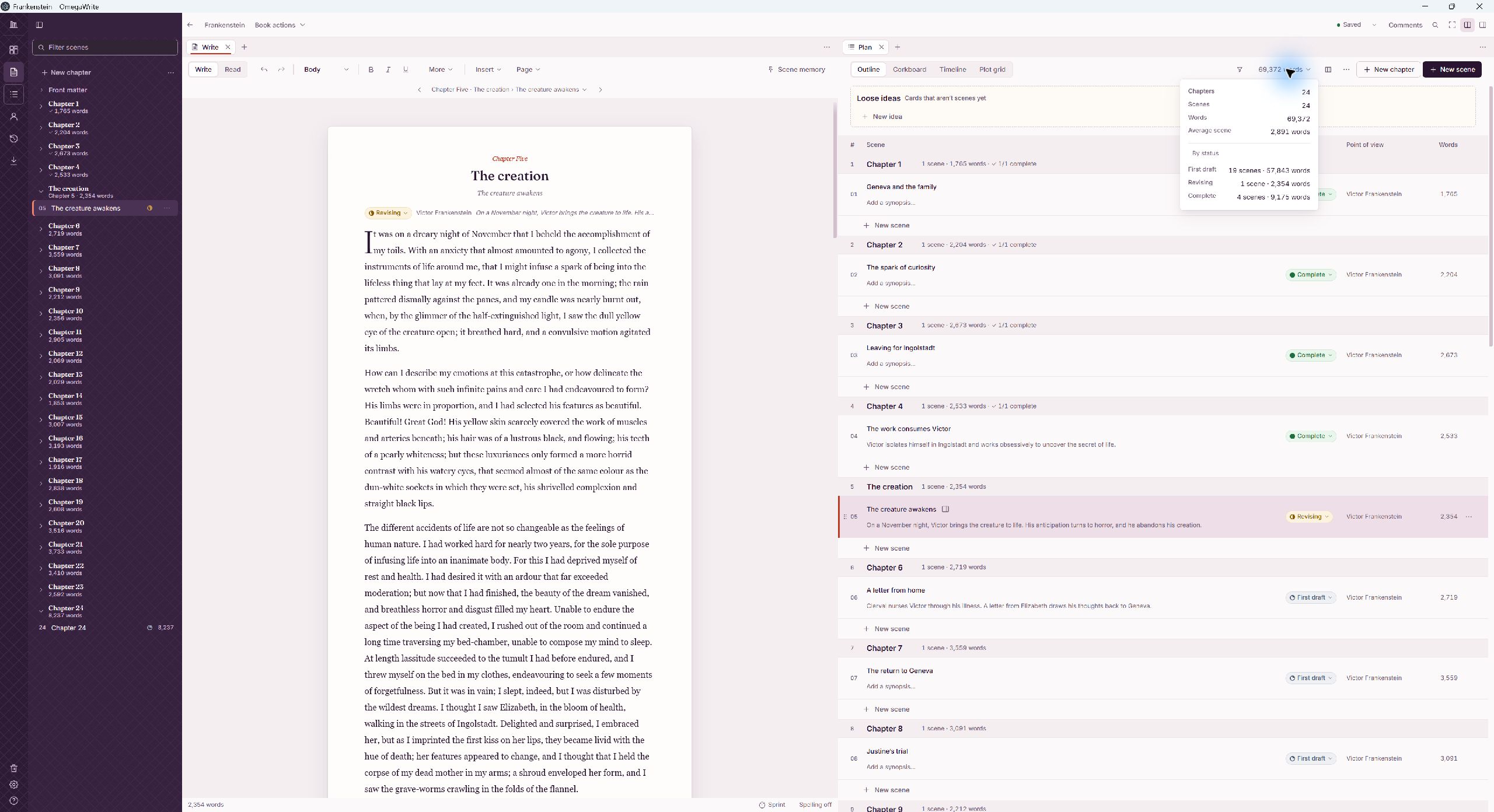
In Plan, press the word count — or the filtered scene count — to open Book totals: chapters, scenes, words, average scene length, filter results and counts by status. Two panes are available on wider windows; Focus and the bare page keep a single view.
Safety
Built so you never lose a page.
A novel is years of work. OmegaWrite treats every save like it matters, because it does.
Saves as you type
Text commits to a local database moments after you stop typing. “Saved” means saved.
Crash recovery
If your PC dies mid-sentence, your draft waits for you. You choose whether to restore it.
Snapshots & history
Name a snapshot before a big revision. Each scene also keeps its last twenty saved versions.
Full backups
Automatic library backups, plus a manager to restore any of them into a separate book.
In and out
Bring your draft. Leave with a book.
Import a draft and review what was found and left out before creating a book. Choose chapters and scenes for a story, or chapters only for non-fiction, papers and reports: sub-headings stay in the text. Enabled toolkits add their own kinds of book. Compile to Word, PDF or EPUB with front and back matter and a layout separate from your writing view.
Import
DOCXEPUBPDFODTRTFHTMLMarkdownTXTPDF import reads text, with no OCR for scans. EPUBs must be DRM-free. Turn on the Screenplay toolkit for Final Draft (.fdx) and Fountain (.fountain, .spmd) import.
Export
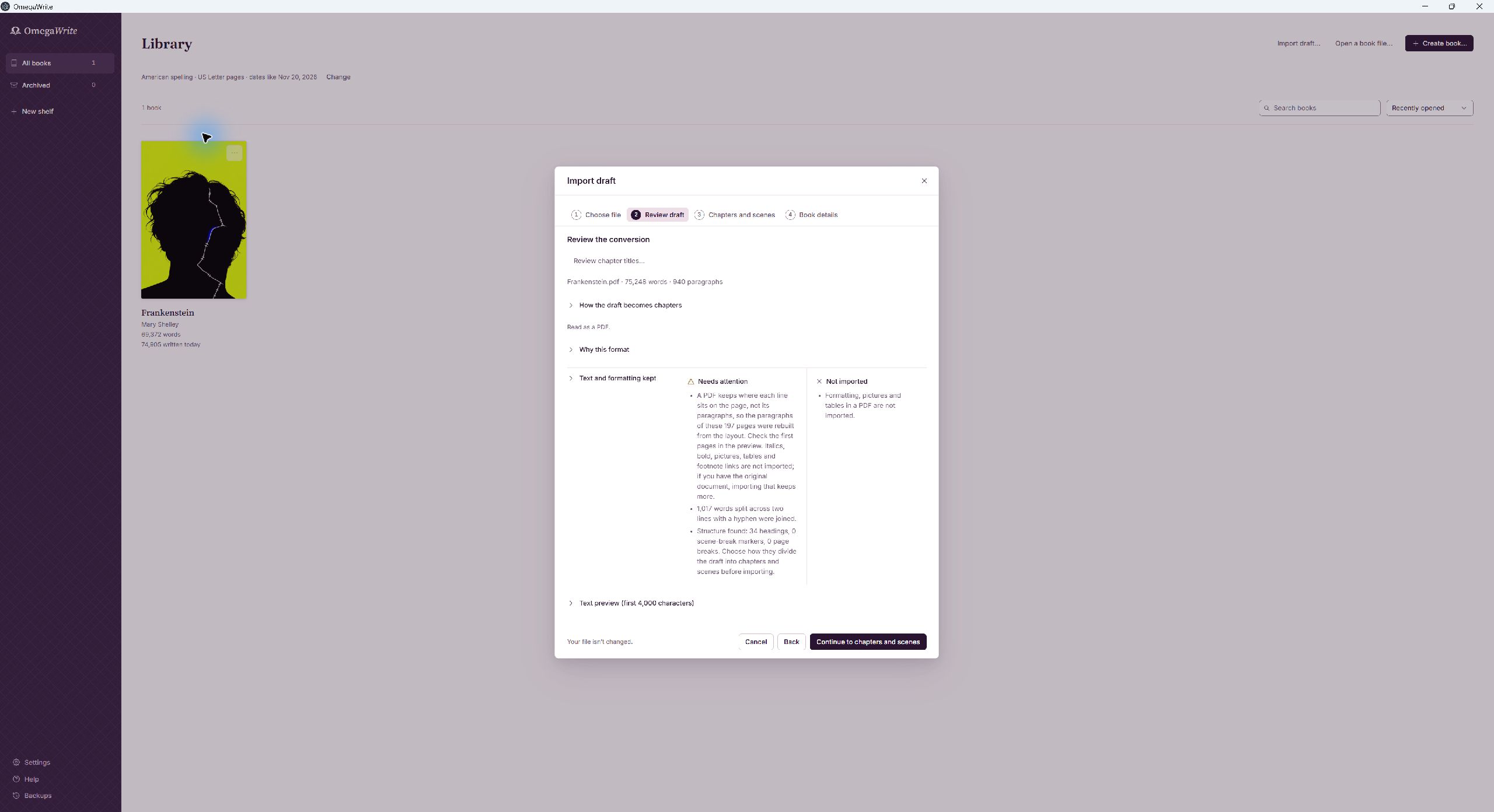
DOCXPDFEPUBImport with a preview
See what comes across.
Review the text, chapter structure and conversion notes before creating a book. Here, a PDF of Frankenstein is reviewed before it becomes an editable book. Your original file stays as it is.
Included toolkits
A page for the form you write.
Four offline toolkits are included with OmegaWrite. Turn them on in Settings › Toolkits to choose their book types in Create book or Import draft. They are off until you choose them.
Screenplay
A Courier script page with scene headings, action, dialogue and more. Import Final Draft or Fountain; export Fountain. Script report counts scenes, characters and locations; page counts are estimates.
Comic script
Write page by page and panel by panel, with dialogue, captions and sound effects. Lettering flags panels per page and balloon or caption words against limits you set.
Yearbook
Photo layouts and portrait grids, plus Photos to place pictures and find missing captions or alternative text. Spreads tracks copy against a minimum you set.
Research paper
Continuous sections with sub-headings and one-inch margins. Paper report checks body and abstract word limits, paper parts, written citations against references, and figure or table mentions. It does not format journal citations or build a reference list; unusual citation forms need checking by eye.
The toolkits provide the formats and tools. Optional starter packs add starting structures and prompts.
Starter packs
Start with structure, not a blank page.
Paid, optional starter packs give a new book a structure of sections, scenes and prompts. They are separate from the included toolkits and never write the prose for you.
Three-act Story
Novel, short story and character-led structures.
3 starters · 48 promptsRomance Plot
Relationship-centred, slow-burn and second-chance.
3 starters · 64 promptsSci-fi Story
First contact, space opera and near-future thriller.
3 starters · 64 promptsScreenplay
Feature, short film and series pilot structures and prompts.
3 starters · 60 promptsComic Book Script
Page and panel structures with prompts for your comic script.
3 starters · 156 promptsYearbook
Spread structures and prompts for a yearbook’s stories and captions.
3 starters · 102 promptsPacks are sold separately and install offline from a file. They provide starting content; the included toolkits provide the matching formats and tools.
Privacy
Nothing leaves your computer unless you send it.
No AI is included by default. Optional plug-ins add features you choose to install and turn on. The example AI Assistant plug-in uses your own provider and key: review the request and included manuscript text before sending. It answers on its own page and cannot edit your book.
“Your library is a folder on your PC. Copy it, back it up, keep it forever.”
Download OmegaWrite
Version 0.18.0 · Windows 10 & 11 (64-bit)
Download for WindowsOmegaWrite-Setup.exe
You're on . OmegaWrite is Windows-only for now — download the installer here to use on your Windows PC.
Install in three steps
- Run the installer you downloaded. If Windows SmartScreen appears, choose More info → Run anyway.
- Open OmegaWrite from the Start menu.
- Create a book — or import a draft you already have.
System requirements
- OS
- Windows 10 or 11, 64-bit
- Disk
- About 400 MB, plus your books
- Internet
- Not required
SHA-256
Questions
Good to know
Do I need an internet connection or an account?
No. Writing, planning, search, backups and export to Word, PDF and EPUB all work fully offline. There is no sign-in.
Where are my books stored?
In a local library on your PC, at %APPDATA%\omegawrite. Close the app and copy that folder to keep a manual backup.
Is there a Mac or Linux version?
Not yet. OmegaWrite is built and tested for Windows 10 and 11 today.
Can I bring in a manuscript I've already started?
Yes: DOCX, DRM-free EPUB, text-based PDF, ODT, RTF, HTML, Markdown and plain text. Review the structure and import warnings before creating the book. PDF scans need OCR elsewhere; PDF pictures and text styling are not kept. Old Word DOC files need saving as DOCX. Final Draft and Fountain need the Screenplay toolkit turned on.
Can I import non-fiction or a research paper?
Choose “Non-fiction, paper or report (chapters only)” in Kind of book when importing a new book. Top headings become chapters; sub-headings stay in the continuous text. Turn on the included Research paper toolkit for a paper page and Paper report. Its citation checks read what you wrote; they do not generate or style your references.
Are toolkits the same as starter packs?
No. Screenplay, Comic script, Yearbook and Research paper are free included toolkits, turned on in Settings › Toolkits. They add formats and tools. Paid starter packs are separate starting structures and prompts installed from a file.
Can I edit two scenes at once?
You can open several Write tabs and show two pages side by side, but there is one active editor. The other page shows its last saved text; click it to move the editor there. Two panes need enough workspace width (at least 1024 pixels). Scene memory is a companion tab beside the working tab.
Does OmegaWrite use AI?
No AI is included by default. You can install an optional plug-in, such as the example AI Assistant, and use your own provider, model and key. That example lets you review the request before sending and displays an answer; it cannot edit your book. Writing and planning need no AI service.
Why does Windows warn me when I run the installer?
SmartScreen warns about new apps it hasn't seen often yet. Choose More info, then Run anyway.